Fill in a form
What this is for
The team uses forms to collect things like meal choices, RSVPs and travel acknowledgements. GatherPack shows you the forms you need to fill in, keeps your answers, and lets leaders see who has finished.
Some forms also need a parent or guardian to sign, or are only for them to fill in. That's covered below.
Before you start
- Be logged in. New to GatherPack? See Log in for the first time.
- Check the deadline. A form shows Due and a date, or No deadline. After the deadline you can't fill it in.
Steps
1. Find the form
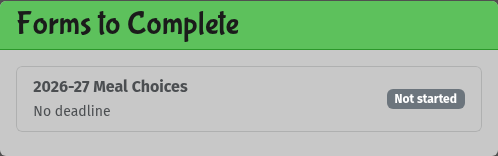
Forms you still need to fill in are in the Forms to Complete card at the top of your dashboard.
You can also select Forms in the menu on the left. My Forms lists them under To do. Forms you've already finished are under Other forms.
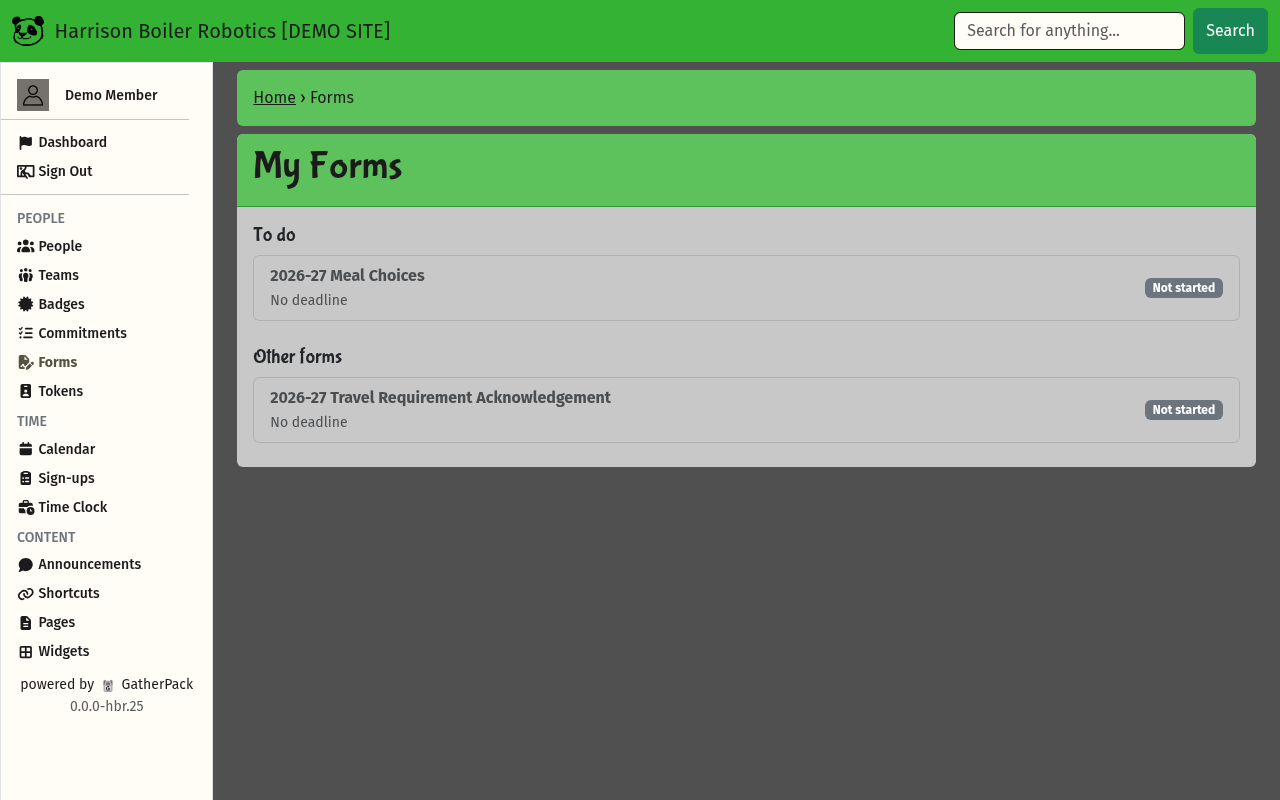
Select the form's name to open it.
2. Answer the questions
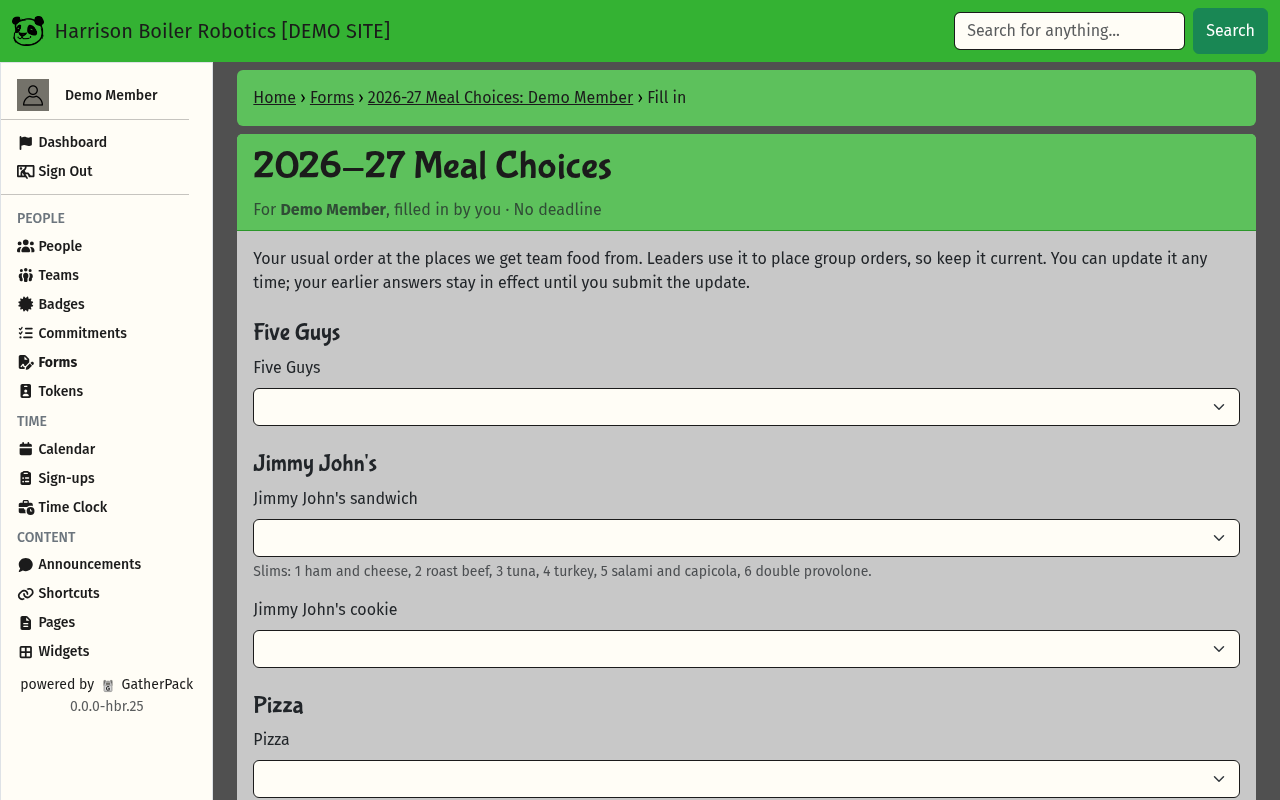
The top of the form says who it's for and the deadline. Read the description, then answer each question: pick from a list, tick boxes, or type an answer.
- Questions marked * must be answered before you can submit.
- A note such as Saved to your profile (Dietary Restrictions) once this is submitted means that answer also updates your profile.
3. Submit
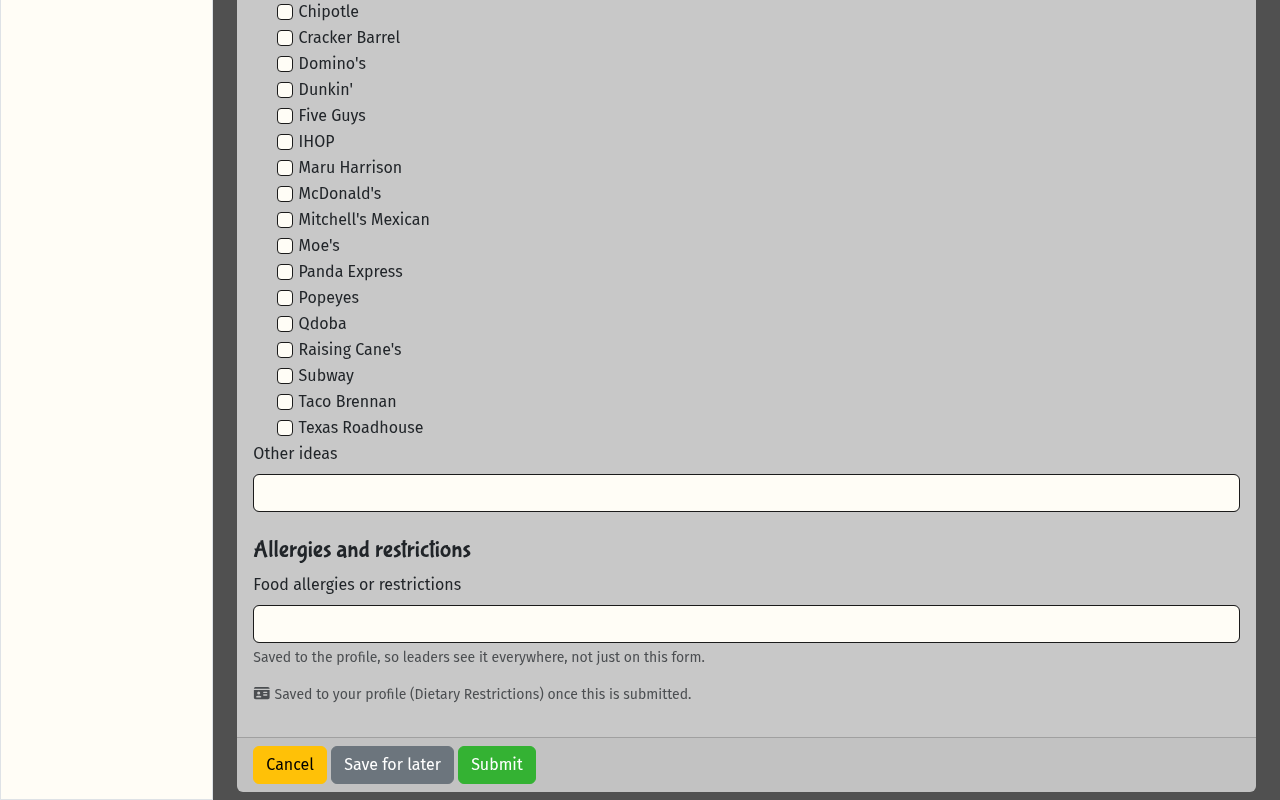
At the bottom of the form:
- Submit sends your answers.
- Save for later keeps your answers without sending them. You'll see Your answers were saved. They aren't submitted yet. Open the form again to finish.
- Cancel leaves without saving anything.
4. Check that it's done
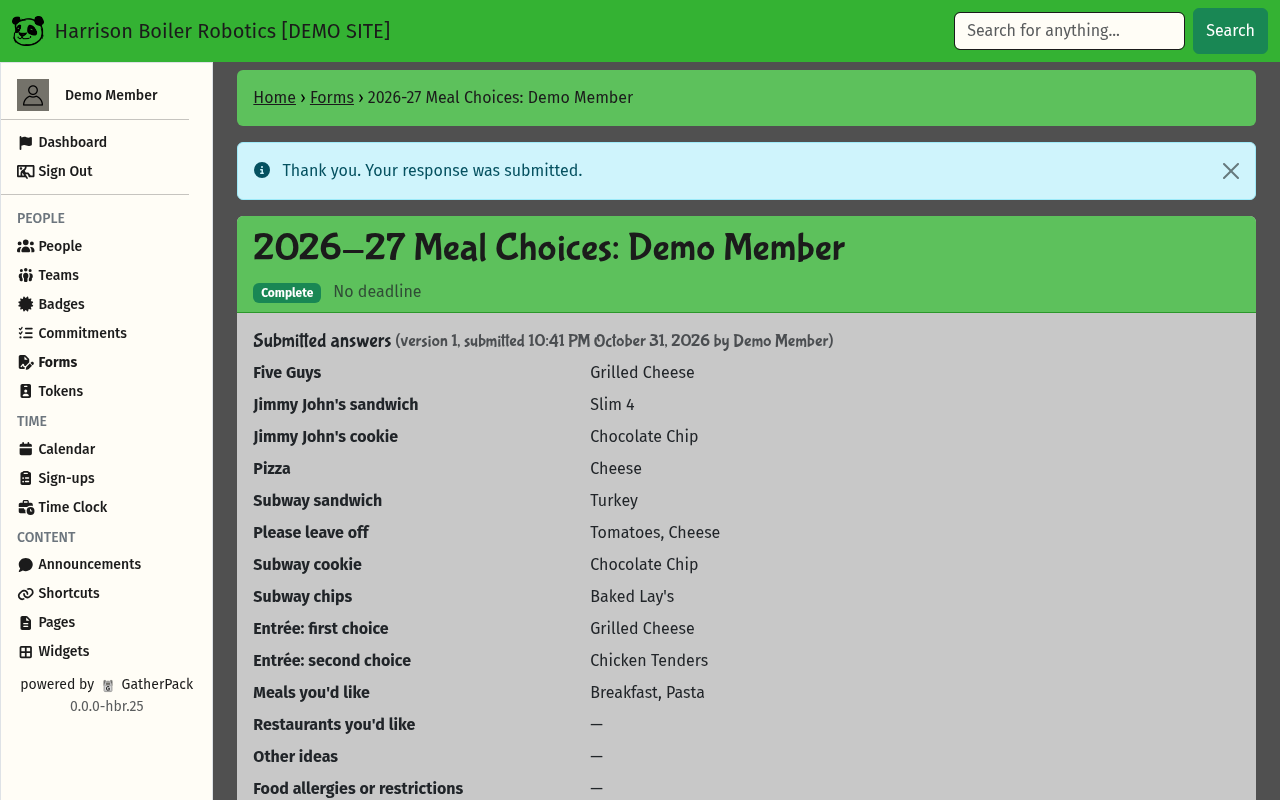
You'll see your answers with this message at the top:
Thank you. Your response was submitted.
The form's status is now Complete, and it leaves your To do list and your dashboard.
Change your answers
You can update a form after you submit it, as long as it's still open.
- Open Forms and select the form under Other forms. You'll see your submitted answers.
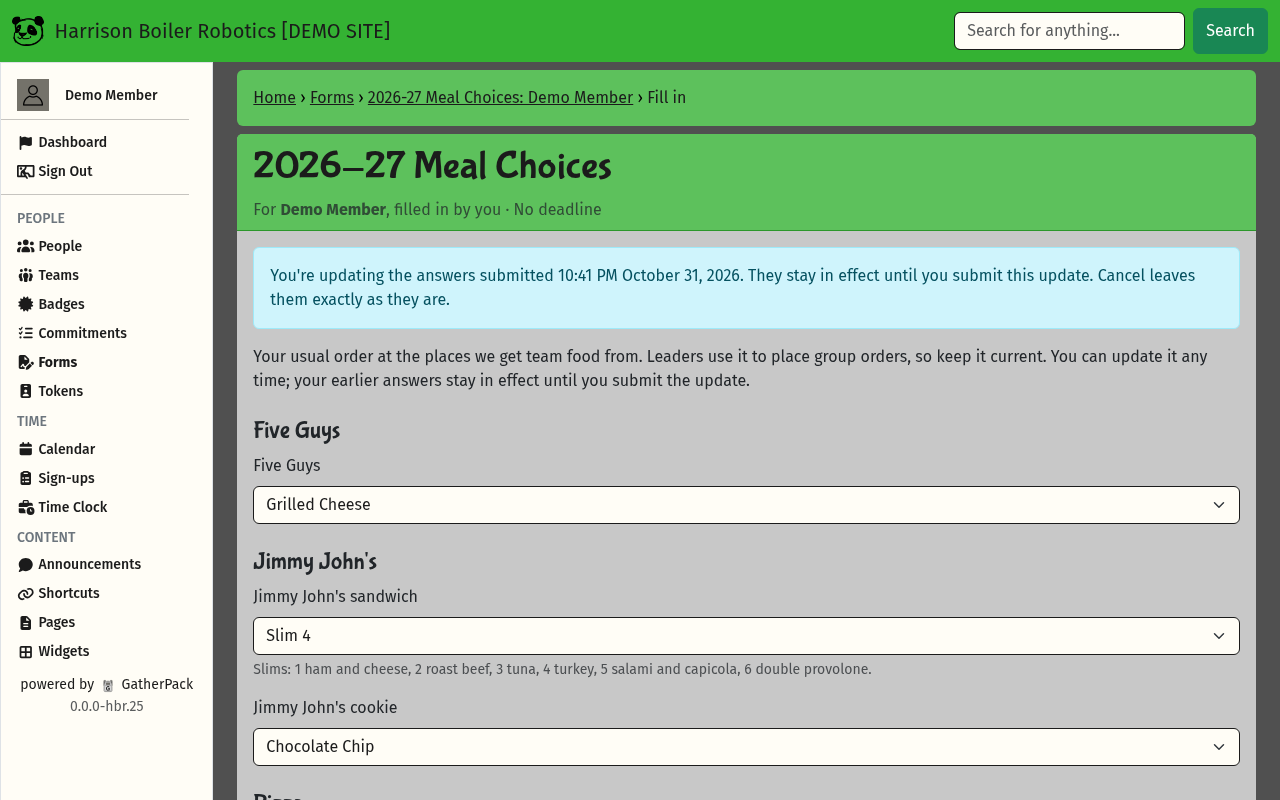
- Select Update answers.
- Change what you need, then select Submit.
Your earlier answers keep counting until you submit the update. Cancel leaves them exactly as they were.
Forms a parent or guardian fills in or signs
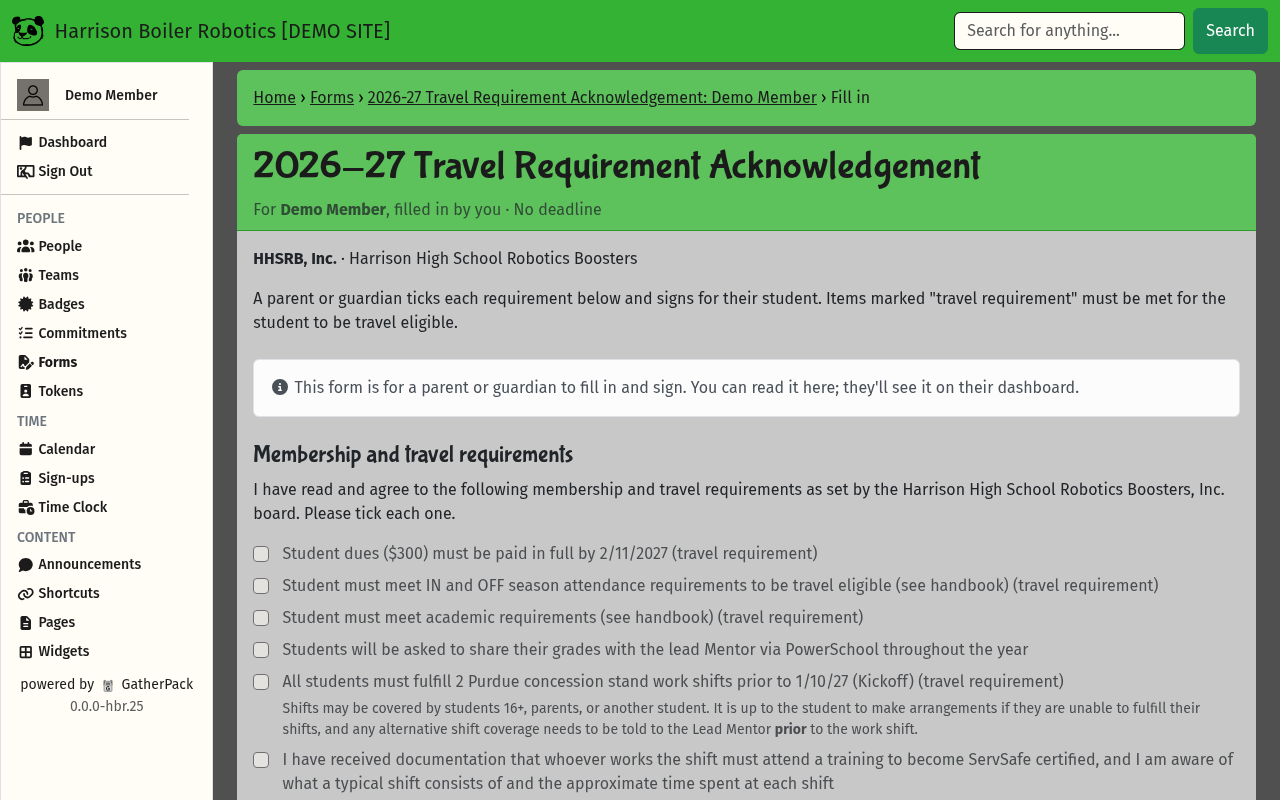
Some forms are for a parent or guardian. When you open one, it says This form is for a parent or guardian to fill in and sign. You can read it here; they'll see it on their dashboard. The boxes are greyed out, and the form stays under Other forms instead of your To do list. Your parent or guardian fills it in from their own GatherPack login.
Other forms are yours to fill in, but end with a parent or guardian's signature. After you submit, the status is Waiting, and the message says whose signature it's waiting for. Your parent or guardian sees it in Forms to Complete and signs it there. Then it's Complete.
If you're old enough to sign for yourself, you'll see Please sign below to finish. after you submit. Type your full name in the box and select Sign.
If you change your answers after a form is signed, it needs signing again.
What the statuses mean
| Status | What it means |
|---|---|
| Not started | You haven't filled it in yet. |
| In progress | You saved answers for later but haven't submitted them. |
| Waiting | Submitted, and waiting for a signature. |
| Complete | Done. Nothing else to do. |
| Needs re-confirmation | The form changed, or profile details it recorded changed, since you submitted. Open it, check your answers and submit again. |
| Withdrawn | The answers were withdrawn and no longer count. Fill it in again to replace them. |
Troubleshooting
It says “Please check the answers marked below.”
A required question is empty, or an answer isn't valid. The question is marked in red with what's wrong. Fix it and select Submit again.
A form I expected isn't in my To do list
Look under Other forms on the My Forms page: you may have finished it already, or it may be one a parent or guardian fills in, which is on their dashboard, not yours. Otherwise, ask the leader who sent it whether it's meant for you.
I can't find Update answers
The form is closed, or it's waiting for a signature. While it's Waiting, use Review answers to change them. Changing an answer sends it back to a draft, and any signature already given is removed.
My parent doesn't see the form to sign
Your parent or guardian needs their own GatherPack login, linked to you as your guardian. Ask a mentor to check.