Log in for the first time
What this is for
The team makes your GatherPack account for you, using the email address the team has for you. It doesn't come with a password. To log in the first time, you ask GatherPack to email you a link, use the link to set your password, and you're in.
Use the same steps any time you forget your password.
Before you start
- Know which email address the team has for you. It's usually the one you used on your registration form. Your login is that address.
- Be able to open that email account on the device you're using, or on a phone next to you.
- Have about 5 minutes. The link in the email works for 6 hours.
Steps
1. Open the sign-in page
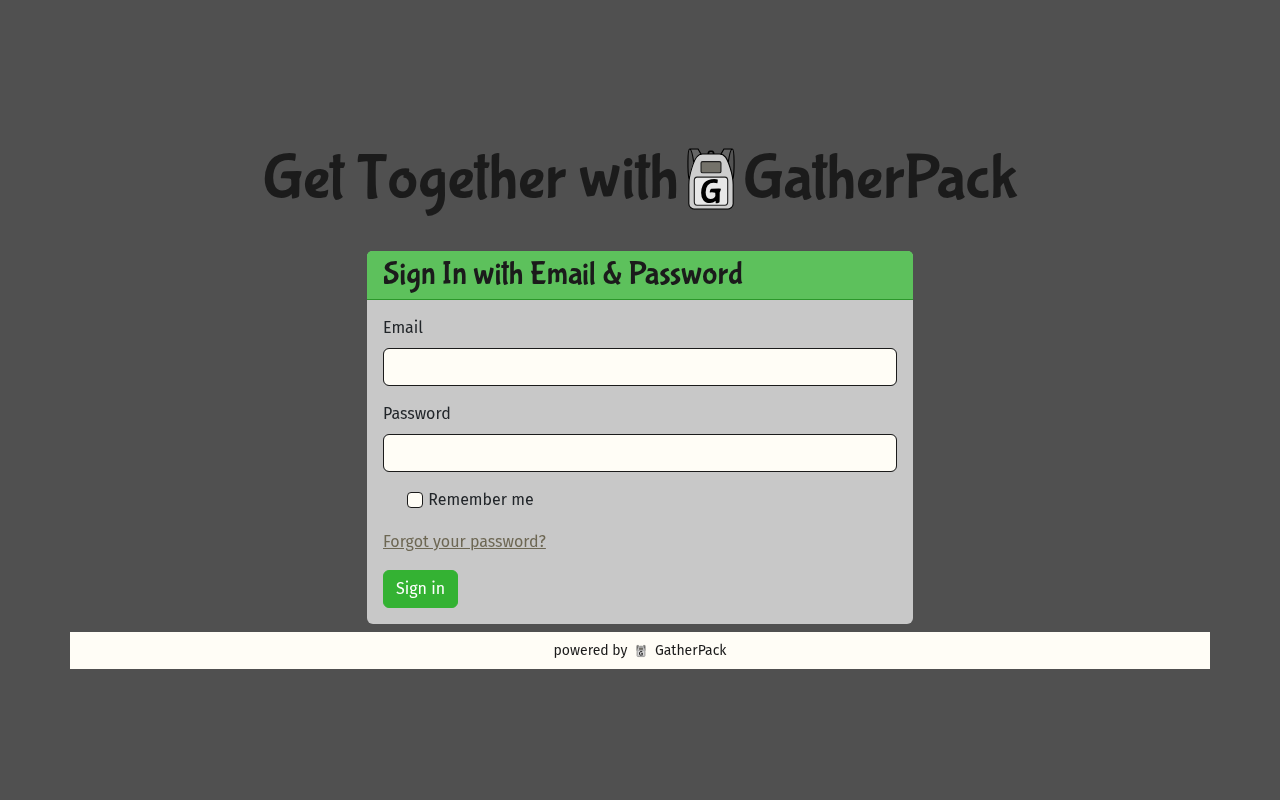
Go to the team's GatherPack site, team.hbrlive.com. You'll see a box titled Sign In with Email & Password.
2. Choose "Forgot your password?"
Under the Password box, select Forgot your password?
You haven't set a password yet, so this is the way in, even the first time.
3. Ask for the email
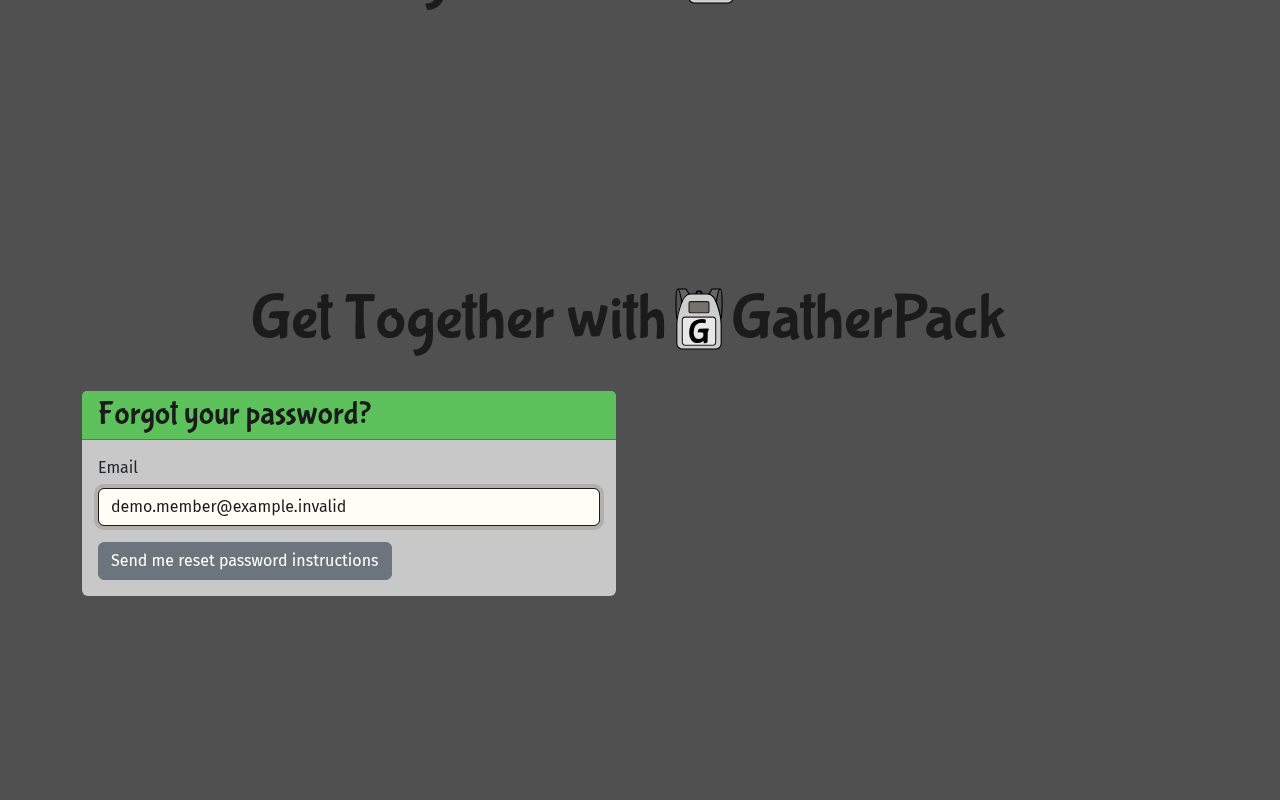
- In Email, type the email address the team has for you.
- Select Send me reset password instructions.
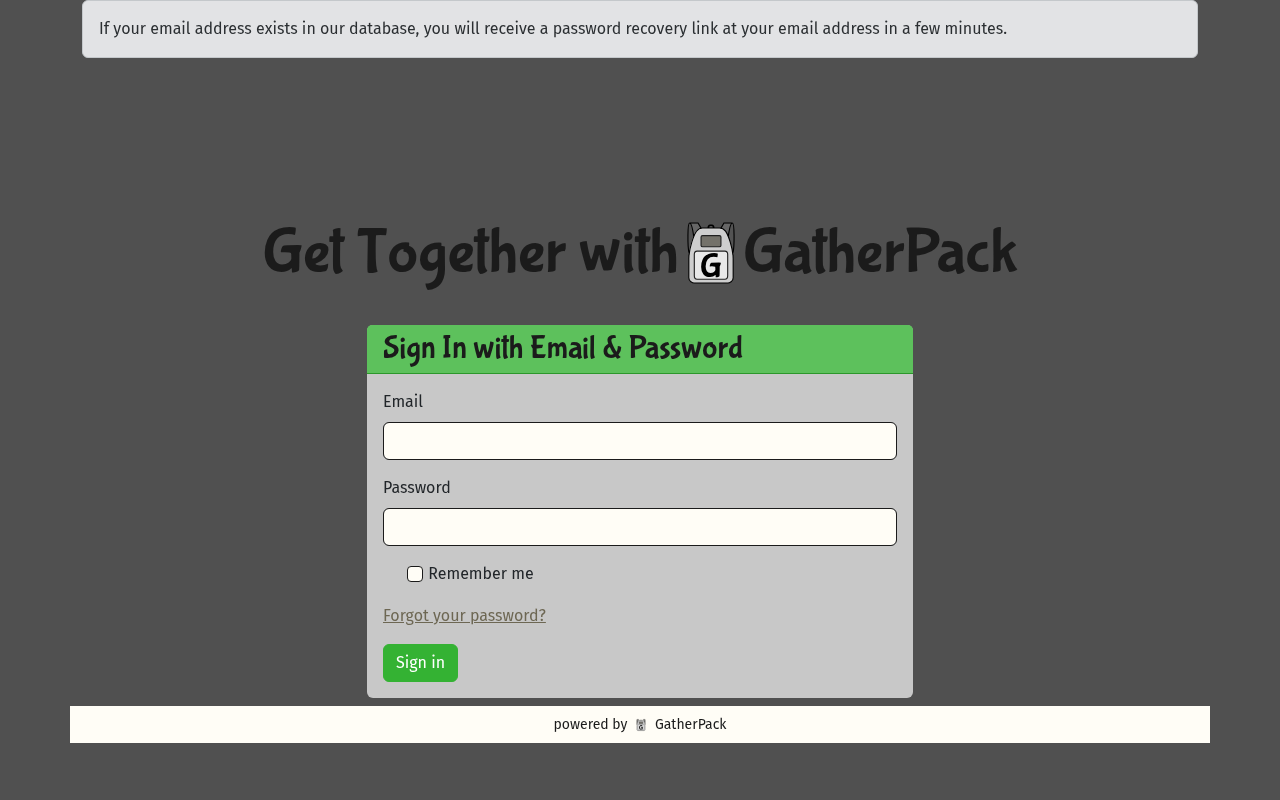
You're taken back to the sign-in page with this message:
If your email address exists in our database, you will receive a password recovery link at your email address in a few minutes.
You'll see this message whatever address you typed, so it doesn't tell you whether the address was right. If no email arrives, see Troubleshooting.
4. Open the email
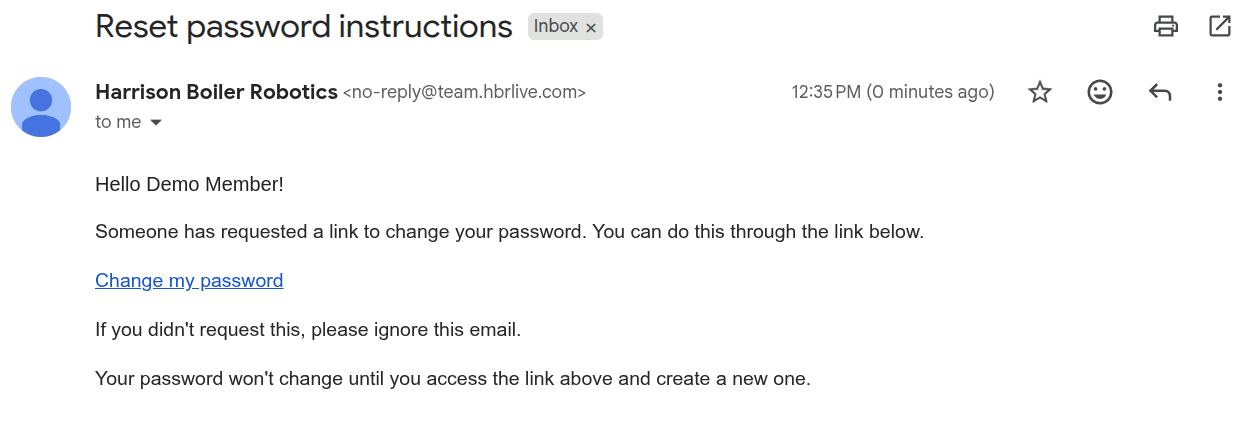
Look for an email from Harrison Boiler Robotics with the subject Reset password instructions. It says:
Hello your name!
Someone has requested a link to change your password. You can do this through the link below.
Change my password
If you didn't request this, please ignore this email.
Your password won't change until you access the link above and create a new one.
Select Change my password.
5. Choose your password
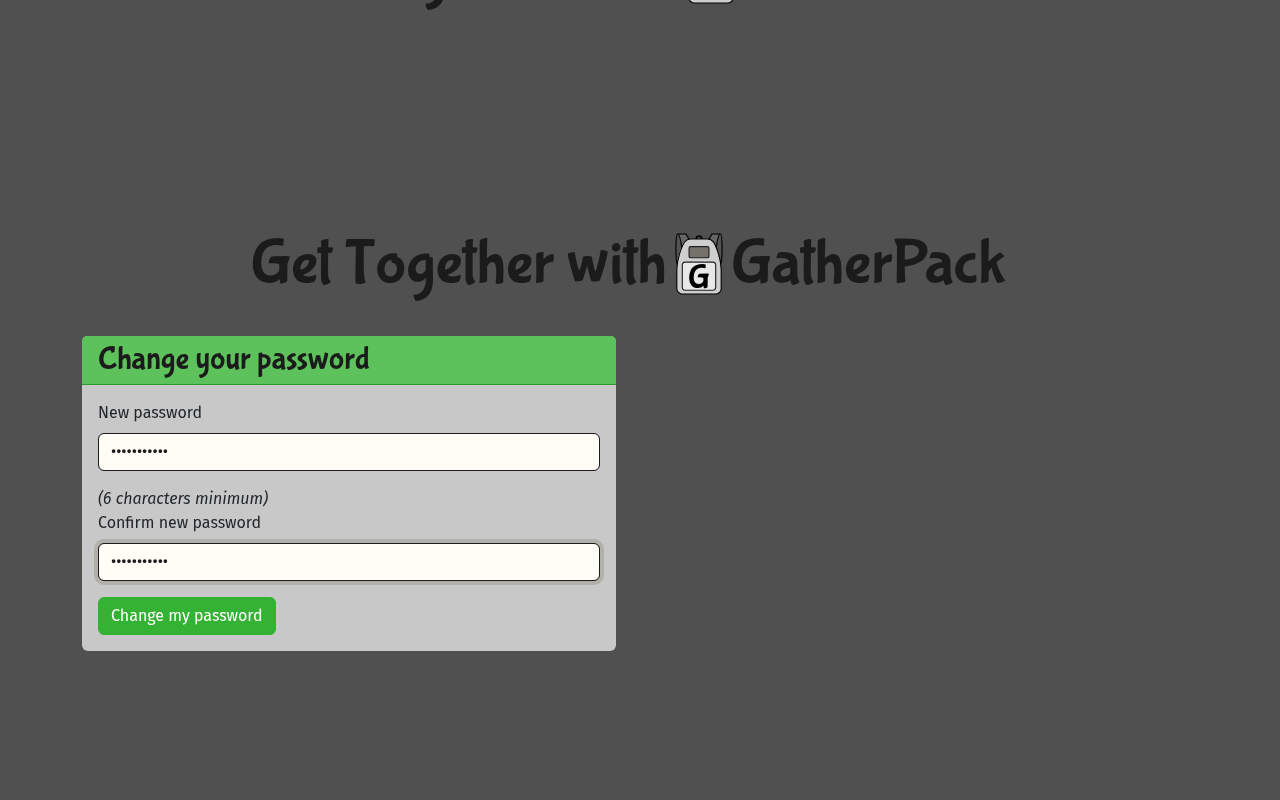
The link opens a page titled Change your password.
- In New password, type the password you want. It must be at least 6 characters.
- In Confirm new password, type it again.
- Select Change my password.
6. You're in
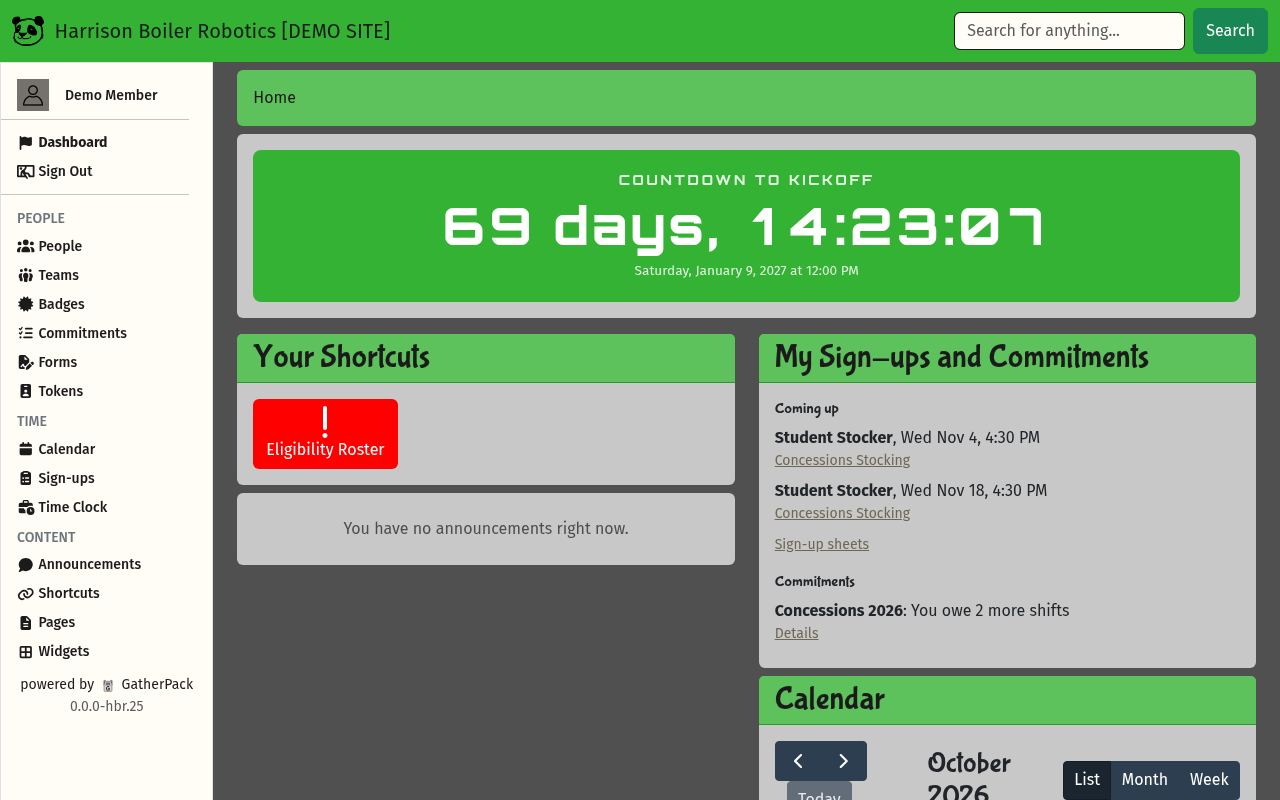
GatherPack logs you in and opens your dashboard, with this message at the top:
Your password has been changed successfully. You are now signed in.
The dashboard shows forms you need to fill in, announcements, and your sign-ups and commitments.
Next time, log in on the sign-in page with your Email and Password, then select Sign in. Tick Remember me on your own device to stay logged in.
Troubleshooting
No email arrived
- Wait a few minutes, then check your spam or junk folder.
- Make sure you typed the address the team has for you. Try another address you might have used.
- Ask for a new email (step 3). Only the newest link works: asking again cancels the earlier ones.
- Still nothing? Ask a mentor to check which email address is on your account.
The page says “Reset password token has expired, please request a new one”
The link is more than 6 hours old. Go back to step 2 and ask for a new email.
The page says “Reset password token is invalid”
The link was already used, or you asked for another email after this one. Use the link in your newest email, or ask for a new one.
The page says “Password is too short (minimum is 6 characters)”
Choose a password with at least 6 characters.
The page says “Password confirmation doesn't match Password”
The two boxes must match exactly. Type the same password in New password and Confirm new password.
The sign-in page says “Invalid Email or password”
Check the email address and password for typos. After 10 wrong tries in a row, your account is locked for 30 minutes; wait and try again, or reset your password (step 2).
It says “Your password has been changed successfully.” but I'm not logged in
Your account is locked from too many wrong tries. Your new password is saved. Wait 30 minutes, then log in with it.
I was logged out on my own
GatherPack logs you out after 2 hours without using it. Log in again. Ticking Remember me when you log in keeps you logged in on that device.